
Your browser is not compatible
This tool requires Web Serial API, available only in Chrome and Edge on desktop computers.
Requirements:
- Chrome or Edge browser (desktop)
- Windows, macOS or Linux system
- Active PRO subscription
Sign In
Access with your Reserving account
PRO Subscription Required
This tool requires an active PRO subscription. Please activate your subscription from the mobile app.
Cargando información del firmware...
Firmware Information
Version: Cargando...
Chip: -
Release Date: -
Requirements
- Chrome or Edge browser (recent version)
- USB cable connected to ESP32
- Installed drivers (CP210x, CH340, etc.)
Steps
- Connect your ESP32 to the computer via USB
- Click "Connect Device"
- IMPORTANT: Hold down the BOOT button on the ESP32 while connecting
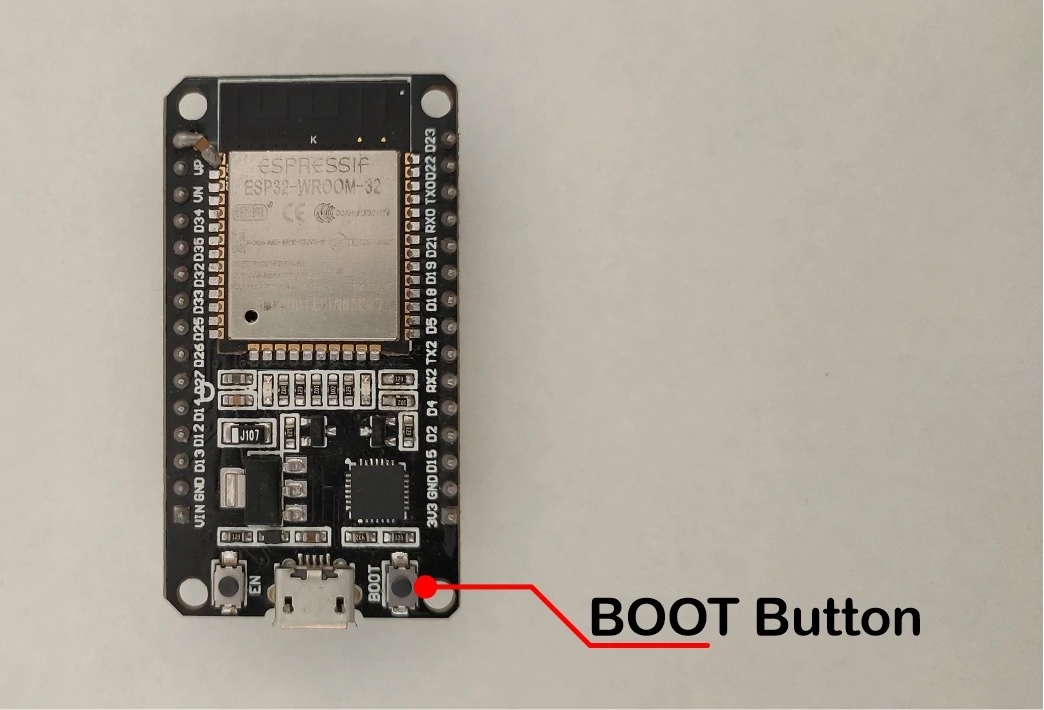 Location of the BOOT button on the ESP32
 - Select the correct COM port in the dialog
- Once the chip is detected, click "Install Firmware"
💡 Tip: If the connection fails, keep the ESP32 BOOT button pressed during the entire connection process.
Chip detected: -
MAC Address: -
Progress
0%
Activity Log
Esperando conexión...
Verificación Post-Instalación
✓ Sistema operativo y estable
-
-
-
-
-
-
-
0